
This article will be instructions on how you can make your personal Google Gmail account into an SMTP server. For us developers, this is great, because we can use this feature to send out emails from our application(s) without being blocked by our system administrators or other internal team blockers. But keep in mind, this will only allow us to send out 500 emails per day, but that should be enough right?
Before we get started, I would recommend that you’d use a Google account that is meant for your development efforts. Because once you configure your account to send out emails as an SMTP server, your account will be vulnerable, learn more (Google external link).
In order for us to be able to send out emails, your Google account must be configuration to Authorize access. If this step has already been done, skip to link #2.
1. Authorize access to your Google account
Step 1. Login to your Google Account.
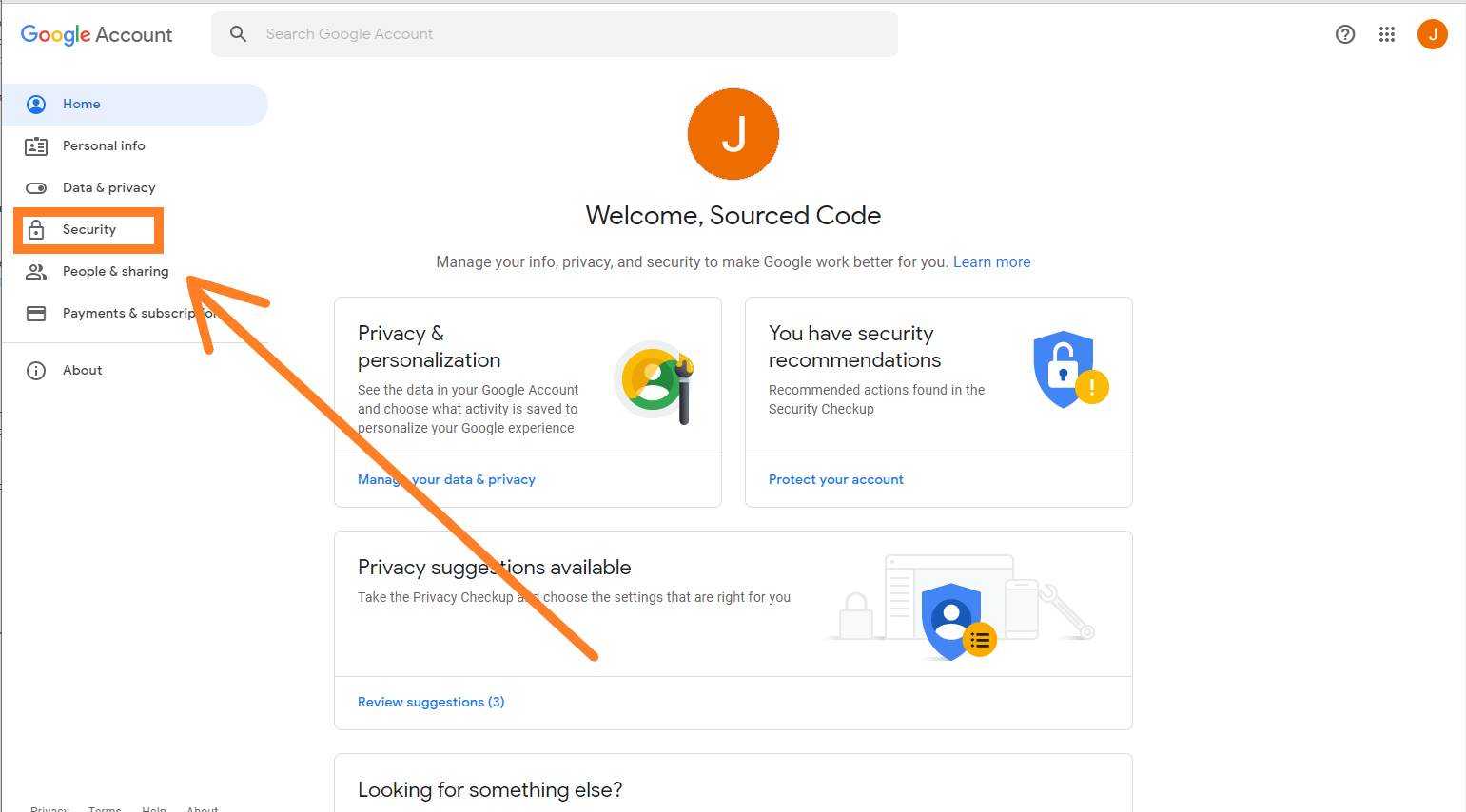
Once you have logged into your account, click on the security link on the sidebar navigation. Click here for direct access.
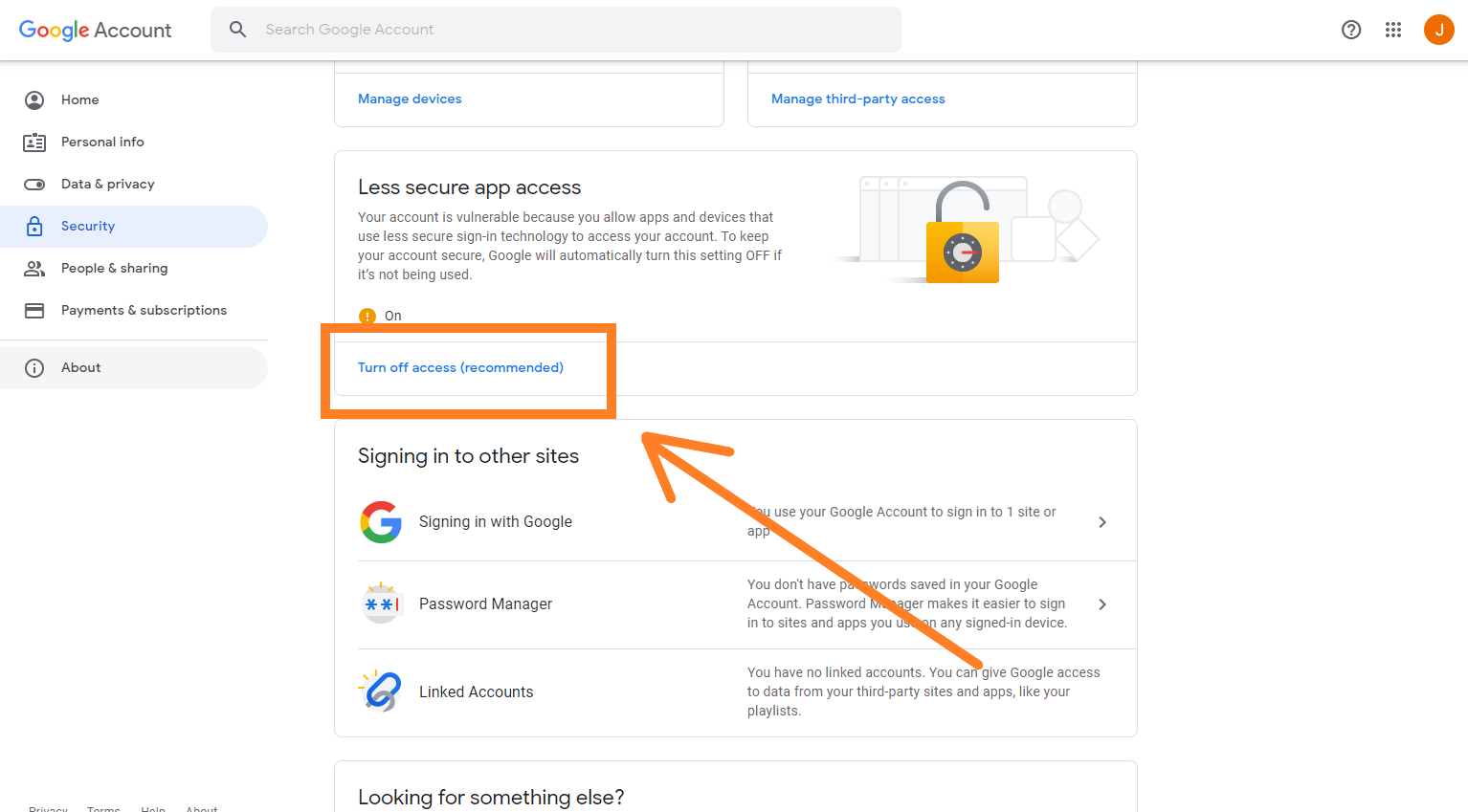
Step 2. Scroll to around the bottom of the page and click on the “Turn off access (recommended)”, to navigate to the configuration page. Click here for direct access.
Step 3. In the Less secure app access page, toggle the Allow less secure apps option.
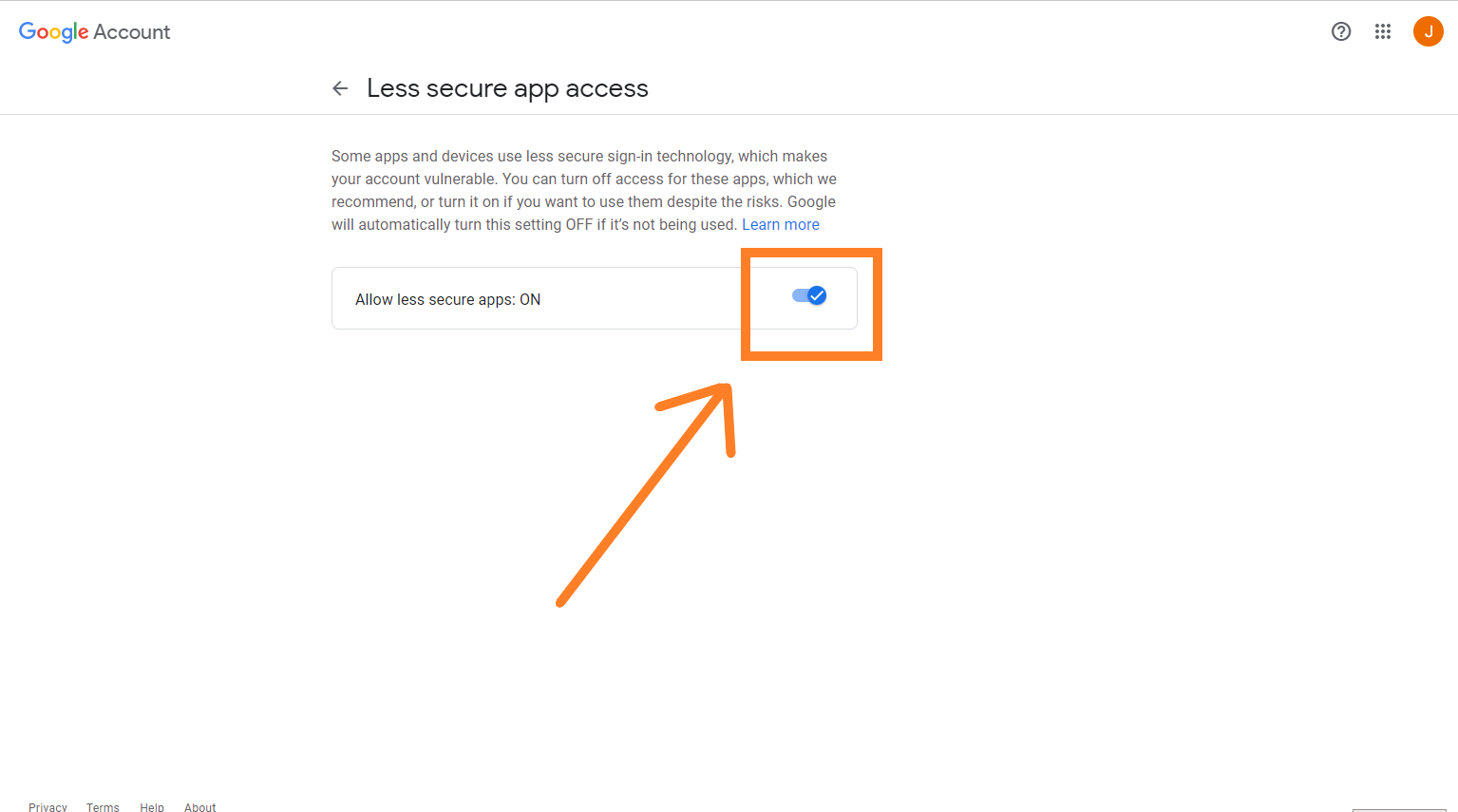
Please remember that once this, Allow less secure apps option, has been enabled, it will make your account vulnerable. Make sure you use a disposable account for this.
Once the Allow less secure apps option is enabled, you can start sending out emails using your Google account as the SMTP mail server. Skip to step 2 to configuration for your application server.
2. Configuration for your Application Server
Once you have authorized access to your Google account, you are set, use the configuration below, and you should be able to start sending free emails from your Google Gmail account!
SMTP server hostname: smtp.gmail.com
SMTP server port: 465, 25 or 587 (test in that order)
SMTP user: contact@sourcedcode.com
SMTP password: p4ssw0rd (this password is the password of your email address)
SMTP TLS/SSL: true